Using GPS clock-in for accurate time tracking
Let crews clock in and out at the job site so labor hours are captured automatically and tied to the right job.
Updated June 2026
GPS clock-in captures real labor hours against the right job, without paper time sheets or guesswork. Crews clock in when they arrive and out when they leave, and the hours land on the job for accurate costing and payroll.
Turn on GPS clock-in
- Go to Settings, Time tracking.
- Enable GPS clock-in for your crew roles.
- Set the geofence radius around a job site that counts as on site.
- Choose whether clock-in is required to start a job.
How crews use it
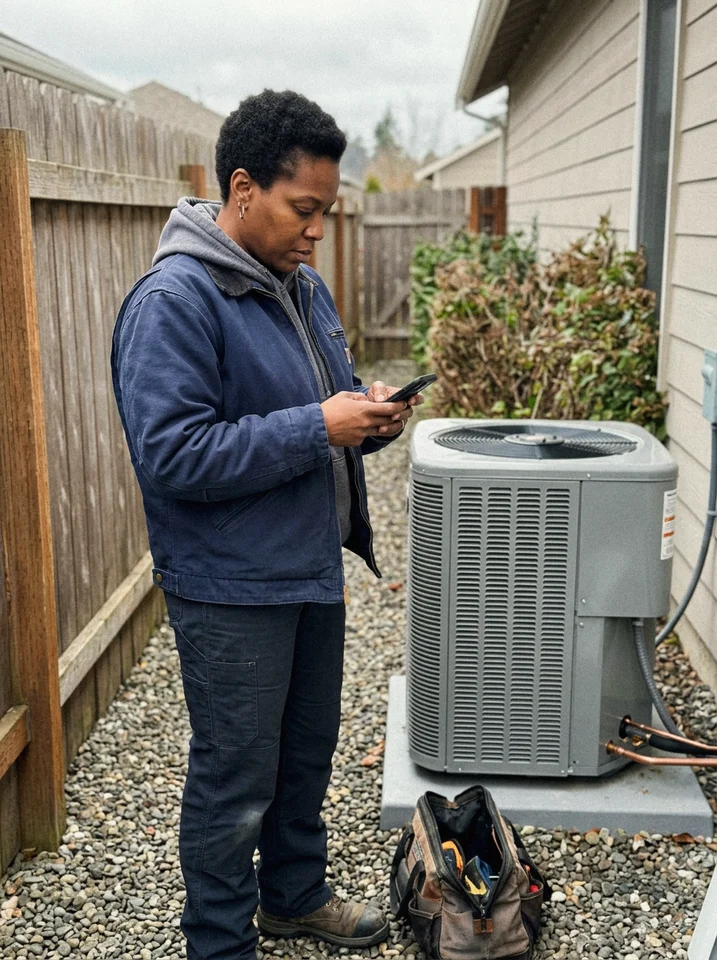
In the field, clocking in is one tap from the assigned job. The app records the time and the location stamp so the hours are tied to that specific job.
- Crew taps Clock in when they arrive at the job.
- The app confirms they are inside the geofence.
- Tapping Clock out ends the entry and totals the hours.
Review and approve
Office staff review time entries before they flow to payroll or job costing. Fix a missed clock-out, add a note, and approve in one place.
- Open Time, Entries and filter by crew or week.
- Edit any entry that needs a correction, with the change logged.
- Approve the week to lock it for payroll and reporting.